

Key Takeaways
- Small businesses are disproportionately targeted by phishing attacks — and modern scams are far more sophisticated than a badly worded email.
- Telling employees to “be careful” isn’t a security strategy. Systemic fixes to accounts, email settings, and app permissions do far more than awareness training alone.
- Phishing-resistant login methods like passkeys block over 99% of automated identity attacks, according to Microsoft’s Digital Defense Report.
- Five specific controls — covering login methods, email authentication, app permissions, legacy protocols, and email scanning — work together to close the most common entry points scammers use.
- TechEd Shield breaks these protections down into plain-language, actionable steps built specifically for business owners who don’t have an IT team.
Phishing is still the number one way scammers break into small business accounts. But the attacks look nothing like they did five years ago. They’re polished, personalized, and engineered to slip past filters that used to catch them. The good news? Real small business phishing protection doesn’t require a technical background — just a handful of well-placed system changes that block the vast majority of these attacks.
Small Businesses Are the Easiest Target — and Scammers Know It
Small businesses with fewer than 100 employees are 350% more likely to be targeted by social engineering attacks than larger companies. And 91% of all cyberattacks start with a phishing email. Those aren’t scare tactics — they’re the operational reality of running a business online without a dedicated security team.
The reason small businesses get hit so often isn’t random. Scammers go where the defenses are weakest. Large enterprises invest heavily in security infrastructure. Small businesses, by contrast, are often running on default settings, shared passwords, and the hope that nothing goes wrong. That gap is exactly what attackers use.
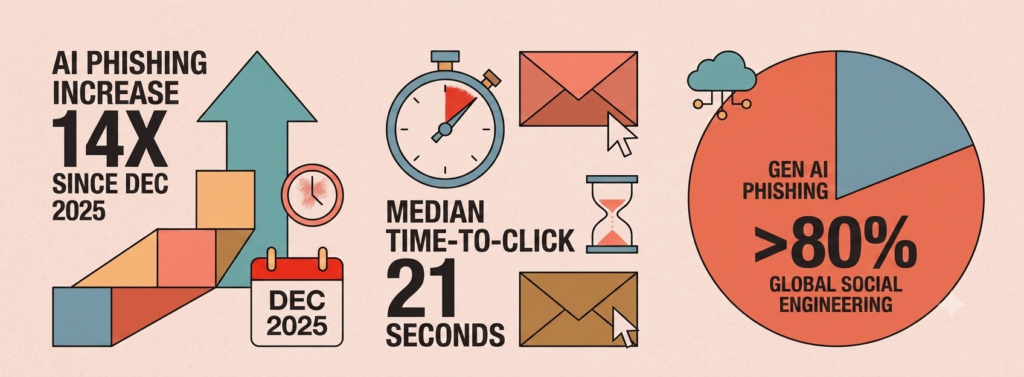
What’s changed in recent years is the quality of the attacks. Phishing emails used to be easy to spot — awkward phrasing, obvious spelling errors, suspicious sender addresses. Those red flags are mostly gone now. Today’s attacks are tailored, context-aware, and deliberately designed to look like something a real contact would send. The old advice of “just look for typos” no longer cuts it.
Cybersecurity training built for the AI-scam era exist specifically to bridge this gap — translating the kind of protections that IT teams put in place into clear, step-by-step guidance that any business owner can actually follow and finish.
Why ‘Don’t Click’ Advice Isn’t Enough Anymore
Employee training has its place. But the idea that phishing protection begins and ends with teaching people to spot suspicious emails is dangerously out of date. Modern attacks are engineered to fool even cautious, security-aware people — and the tools scammers use have gotten dramatically more accessible.
AI-Written Lures That Look Perfectly Legitimate
Generative AI has removed one of the last reliable signals that an email might be fake: bad writing. Attackers now use AI tools to draft hyper-personalized messages that match the tone, vocabulary, and context of legitimate business communication. These aren’t bulk spam blasts — they’re targeted, polished, and increasingly indistinguishable from real emails a colleague or vendor might send.
This matters because traditional email filters work largely by scanning for known bad patterns: flagged phrases, suspicious domains, malformed headers. An AI-written email that references a real project, uses correct grammar, and comes from a domain that looks almost right gives those filters very little to catch.
QR Code Scams That Traditional Email Filters Miss
QR codes in phishing emails — often called “quishing” — represent a fundamentally different kind of attack. Instead of embedding a clickable link that email security tools can scan and evaluate, attackers embed an image containing a QR code. Most email security systems analyze text and URLs. They can’t read what’s inside a picture.
When someone scans that code with their phone, the redirect happens on a personal mobile device — completely outside whatever security controls are running on a work computer or corporate network. Malicious QR code detections increased fivefold in late 2025. It’s a fast-growing attack type precisely because it sidesteps the defenses most businesses already have.
The MFA Bypass Most Business Owners Don’t Know Exists
Multi-factor authentication (MFA) is widely recommended, and for good reason. But there’s a specific type of attack — called an Adversary-in-the-Middle (AiTM) attack — that can bypass standard MFA entirely. And it doesn’t require any special technical skill on the attacker’s part anymore.
Here’s how it works: the attacker sets up a fake login page that acts as a silent go-between. When a victim types their password and approves the MFA prompt, the fake site relays everything to the real service in real time — including the session token the real service generates after a successful login. The attacker ends up with an authenticated session, even though they never knew the password or touched the MFA device. Commercially available phishing kits that do this automatically are increasingly accessible to almost any criminal — the same technique fraudsters have used to redirect six-figure real estate closing wires.
This is the core problem with “don’t click” advice: it assumes the threat is obvious enough to avoid. These three attack types — AI lures, QR codes, and MFA bypass — are specifically designed so that a careful, attentive person can still fall for them. The fix isn’t better human reflexes. It’s better systems.
Step 1: Switch to Login Methods Scammers Can’t Steal
The most effective single change a small business can make is switching to a login method that can’t be intercepted — even if an employee lands on a fake website. That means moving away from standard verification codes and toward phishing-resistant authentication.
Why Standard Two-Factor Codes Can Still Be Intercepted
The common forms of MFA — SMS codes, email verification links, and authenticator app codes — all share one critical flaw: they rely on a secret that gets transmitted. When a person types a six-digit code into a login box, that code travels from their device to a server. On a proxy site designed to intercept it, that code travels straight to the attacker instead.
Push notifications have the same vulnerability. When an employee taps “approve” on a push prompt while unknowingly on a fake site, the approval goes to the real service through the attacker’s relay — completing the attacker’s login, not the employee’s. Standard MFA is better than no MFA, but it wasn’t designed to stop this kind of real-time relay attack.
How Passkeys and Security Keys Block Phishing Attacks Effectively
Passkeys and FIDO2 hardware security keys work on a completely different principle. Instead of transmitting a secret, they use public-key cryptography tied to the exact domain of the website requesting the login. Here’s what that means in practice:
- When setting up a passkey, the device creates a unique cryptographic pair — one key stays on the device, one is registered with the legitimate service.
- At login, the real service sends a challenge. The device signs it using the stored private key — but only if the requesting domain exactly matches the one registered at setup.
- On a fake or proxy site, the domain won’t match. The device simply refuses to sign the challenge. No credentials are ever released to the attacker.
According to Microsoft’s Digital Defense Report 2025 (which covers July 2024 through June 2025 and was released in October 2025), phishing-resistant MFA based on FIDO2 blocks over 99% of automated identity attacks. Passkeys also improve the login experience — FIDO2-based passkeys achieve a 95% sign-in success rate compared to roughly 30% for traditional password methods.
A Simple 3-Phase Rollout for Non-Technical Teams
Switching to passkeys doesn’t have to happen all at once. A phased approach makes it manageable for any team:
Phase 1 (Weeks 1-2): Identify high-risk roles and get hardware keys for them. Global administrators, anyone who handles billing or payroll, and HR staff with access to sensitive records are the highest-value targets. FIDO2 hardware security keys (typically $30-$60 each) provide device-bound protection for these accounts that can’t be bypassed remotely — a small spend that also pays off at renewal time, since documented MFA enforcement is one of the biggest levers for lowering cyber insurance premiums, especially in higher-risk sectors like healthcare.
Phase 2 (Weeks 3-4): Roll out platform passkeys for everyone else. Most modern devices — Windows Hello, Apple Face ID/Touch ID, Android fingerprint — already support passkeys at no extra cost. Enable FIDO2 and passkey registration through Microsoft Entra ID or Google Workspace and give employees a 14-day window to set up their credentials.
Phase 3 (Weeks 5-6): Enforce the policy and phase out old methods. Once passkey adoption reaches 95% or higher, update login policies to require phishing-resistant authentication for all critical apps. Progressively remove SMS and voice OTP options. For anyone still using standard push notifications as a temporary bridge, enable number matching as an interim safeguard.
Step 2: Stop Scammers From Impersonating Your Business Email
One of the most damaging phishing attacks doesn’t target your inbox — it uses your domain to target other people. An attacker sends an email that looks like it came from you, tricking customers, suppliers, or staff into acting on fraudulent instructions. Three email authentication standards — SPF, DKIM, and DMARC — exist specifically to prevent this, and together they form a reliable shield against domain impersonation.
What SPF, DKIM, and DMARC Actually Do (In Plain Terms)
Think of these three protocols as a layered verification system for outgoing email:
- SPF (Sender Policy Framework) publishes a list in the domain’s DNS records of which servers and IP addresses are allowed to send email on that domain’s behalf. If an email arrives claiming to be from the domain but originated from an unlisted server, it fails SPF.
- DKIM (DomainKeys Identified Mail) adds a cryptographic signature to every outgoing email — a digital seal that proves the message wasn’t tampered with in transit. Receiving servers verify this signature against a public key stored in the domain’s DNS.
- DMARC (Domain-based Message Authentication, Reporting, and Conformance) ties it all together. It tells receiving email servers what to do with messages that fail SPF or DKIM — whether to deliver them, route them to spam, or reject them outright. DMARC also generates reports showing who is sending email using the domain, including unauthorized senders.
DMARC is a necessity for any business, regardless of size. Email fraud doesn’t discriminate by company headcount — it targets whoever has the weakest authentication setup. Without DMARC, there’s no instruction for receiving servers to follow even when SPF and DKIM checks fail.
Start With Monitoring, Then Gradually Lock Things Down
The biggest mistake businesses make with DMARC is jumping straight to a strict policy before understanding what’s sending email on their behalf. A gradual three-phase rollout avoids blocking legitimate email while still building toward full protection:
Phase 1 — Monitor (Weeks 1-4): Publish a DMARC record set to p=none. This collects reports on all email sending activity without affecting delivery. Use an automated DMARC report parser to identify every service sending email from the domain — including third-party tools like Mailchimp, Salesforce, or billing platforms that may not be properly authenticated yet.
Phase 2 — Quarantine (Weeks 5-8): Once all legitimate sending sources are properly aligned with both SPF and DKIM, upgrade to p=quarantine. Unauthorized emails now land in spam rather than the inbox. Monitor for any unexpected deliverability issues for at least two weeks before advancing.
Phase 3 — Reject (Weeks 9-12): With confirmed clean alignment across all outbound mail, enforce p=reject. Receiving servers will now block any email that fails authentication and claims to come from the domain — including every impersonation attempt a scammer might try.
During the alignment phase, pay close attention to SPF record complexity. SPF has a hard limit of 10 DNS lookups. Businesses using multiple third-party email tools often hit this ceiling, causing legitimate emails to fail. Flattening SPF records — converting nested include statements into direct IP definitions — solves this before it becomes a deliverability problem.
Step 3: Close the ‘No Password Needed’ Backdoor in Your Apps
Passwords and MFA codes aren’t the only way attackers get into business accounts. There’s a less-known method that bypasses both entirely — and it can leave an attacker with ongoing access to emails, files, and contacts even after a password reset.
How Consent Phishing Grants Persistent Access Without Stealing a Password
Modern business software — Microsoft 365, Google Workspace, and most SaaS tools — uses a system called OAuth to let third-party apps connect to accounts. When a legitimate app asks for permission to “read your calendar” or “send email on your behalf,” it’s using OAuth. The system itself is legitimate and useful.
The problem is that attackers can create fake apps that use the exact same permission request process. In a consent phishing attack, a scammer sends a link that appears to open a useful tool — a document viewer, a file converter, a shared workspace. Instead, it triggers an OAuth authorization screen from Microsoft or Google asking for access to the victim’s account. If the user clicks “Accept,” the attacker’s app receives an OAuth token — a persistent key granting access to mailboxes, files, or directory information. This access survives password resets because it doesn’t depend on the password at all.
That’s what makes consent phishing so effective: it works through the legitimate OAuth authorization flow rather than trying to steal credentials directly, giving attackers durable access that bypasses traditional authentication controls entirely.
Restrict Who Can Approve Third-Party App Access
The fix is straightforward: remove the ability for regular employees to approve third-party app connections, and route those decisions through an admin review process instead. Microsoft recommends restricting user consent so that standard accounts can only approve apps from verified publishers with low-impact permissions — and ideally, centralizing all app authorization decisions with identity administrators.
- Weeks 1-2: Audit every third-party app currently connected to the Microsoft 365 or Google Workspace tenant. Revoke permissions for anything unused, unrecognized, or from an unverified publisher.
- Week 3: Update tenant settings to block standard users from approving new third-party app connections. In Microsoft Entra ID, set user consent to require admin approval for all new apps.
- Week 4: Enable an Admin Consent Workflow. This routes blocked permission requests to a formal review queue — so employees can still request access to legitimate tools without disrupting operations. Require at least two administrators to review any new request before approval.
Once this is in place, configure every approved app so that only specific users or groups can access it — not the entire organization by default. This limits the damage if any approved integration is ever abused.
Step 4: Cut Off the Protocol That Makes MFA Pointless
It’s possible to have phishing-resistant MFA fully deployed and still have a back door wide open. Legacy email protocols — the older technical standards that email software used before modern security controls existed — can completely circumvent MFA. And many businesses have them running without realizing it.
The Hidden Risk of Older Email Protocols Still Running in the Background
Protocols like POP3, IMAP4, and SMTP AUTH were built decades ago, long before multi-factor authentication was a concept. They don’t support MFA. They don’t support conditional access policies. They accept a username and password, and if those match, they grant access — full stop.
That’s a serious problem if an employee’s password is ever exposed in a data breach, guessed through a password spray, or purchased from a credential list — which is exactly why choosing a solid tool matters; see our roundup of open-source password managers for small business for vetted, budget-friendly options. An attacker doesn’t need to trick anyone into approving an MFA prompt — they connect directly to the legacy endpoint and log straight in. Over 99% of password spray attacks and 97% of credential stuffing attacks use legacy authentication protocols. Organizations that have disabled legacy authentication experience 67% fewer account compromises.
How to Identify, Migrate, and Disable Legacy Access Globally
Before disabling anything, it’s worth knowing what’s actually using these protocols — because some devices and software legitimately depend on them. Multi-function printers, shipping label systems, and older accounting software are common culprits.
Phase 1 (Weeks 1-3): Find active legacy connections. In Microsoft Entra ID’s sign-in logs, filter for client apps listed as “Authenticated SMTP,” “POP3,” or “IMAP4.” Map those connections to the physical devices or applications generating them. This audit reveals exactly what needs to be migrated before anything gets disabled.
Phase 2 (Weeks 4-6): Migrate non-compliant devices. For printers and scanners, check whether a firmware update enables OAuth 2.0 — many modern devices support it. For equipment that doesn’t, configure SMTP Direct Send instead: the device sends outbound mail directly to the organization’s Exchange Online mail endpoint on port 25, without authentication. Add the device’s static public IP address to the SPF record to ensure deliverability.
Phase 3 (Week 7): Enforce the global ban. Once all legitimate devices are migrated, disable POP3 and IMAP at the individual mailbox level first, then apply a tenant-wide block on SMTP AUTH. Verify the setting has been applied across the entire organization. From this point forward, any connection attempt using legacy protocols is rejected at the protocol layer — before credentials are ever validated.
Step 5: Catch What Still Gets Through — Automatically
Even with all four previous steps in place, some phishing emails will still reach inboxes. No filtering system is perfect, and attackers are constantly refining their techniques. The goal of this final layer isn’t perfection — it’s speed. Catching and eliminating threats within seconds of detection matters far more than trying to prevent every single message from arriving.
Why Traditional Email Filters Miss Modern Threats
Most businesses rely on a Secure Email Gateway (SEG) — a filtering system that sits in front of the mail server and scans incoming messages before they’re delivered. This approach has two significant blind spots that matter more now than they used to.
First, SEGs are positioned to scan inbound email from outside the organization. They’re largely blind to internal emails — messages sent between employees, or from a compromised internal account spreading malware laterally. Account takeover attacks thrive in exactly this gap. Second, modern phishing payloads are increasingly image-based. A QR code embedded in a PNG file, a URL hidden inside a PDF, a split image designed to confuse automated scanners — these techniques specifically target the text-and-URL analysis methods that traditional gateways rely on.
How API-Based Email Security Scans Every Message, Including Internal Ones
API-based Integrated Cloud Email Security (ICES) solutions — such as Avanan, Sublime Security, or Ironscales — take a fundamentally different approach. Instead of sitting in front of the mail server, they connect directly to Microsoft 365 or Google Workspace through the platform’s native APIs. No MX record changes required, no DNS reconfiguration needed.
Because the connection is at the API level, the platform can scan every mail stream: inbound messages from outside, outbound messages leaving the organization, and internal messages passing between employees. It also enables multi-modal AI scanning — analyzing not just text and links, but image contents, QR codes, and document attachments in context. For small businesses, the cost is accessible — see our full breakdown of a complete email security stack for under $10 a month for exactly which tools to use.
The Automated Reporting Loop That Enables Rapid Remediation
Speed is what separates a manageable phishing incident from a full account compromise. Research from the Verizon Data Breach Investigations Report puts the median time from email delivery to a user clicking a link at 21 seconds. The median time for that same user to enter data after clicking is 28 seconds. That gap is where breaches happen.
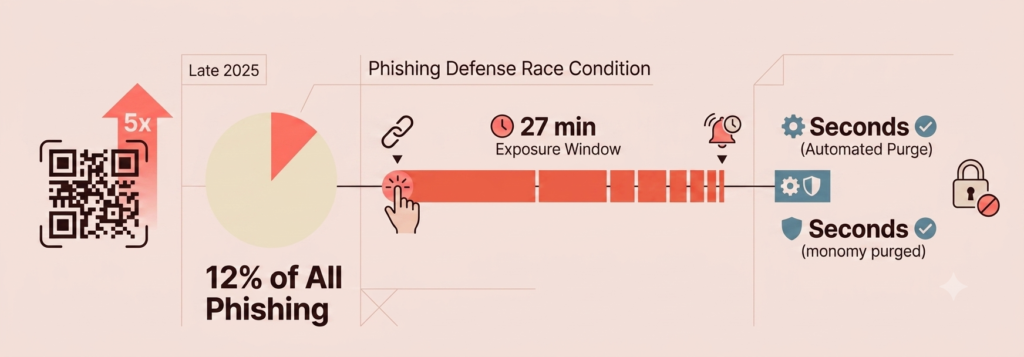
The solution is to close that window through automation rather than faster human reaction times. When an ICES platform is paired with a one-click reporting button in employees’ email clients, the remediation process becomes nearly instant:
- An employee reports a suspicious email by clicking the report button.
- The ICES platform automatically scans the reported message and extracts its indicators of compromise.
- The platform performs a tenant-wide search-and-purge — identifying and deleting every copy of that email from every inbox across the organization, within seconds.
This automated loop means that even when a scam gets past the filters, a single report from one employee protects everyone else. Deploy in phases: start with API integration in monitor-only mode for 7-10 days to establish a baseline of normal communication patterns, then roll out one-click reporting buttons to all email clients, and finally activate automated search-and-purge playbooks once the system has calibrated to the organization’s mail environment.
| Step | What It Stops | Core Fix | Rollout Timeframe |
|---|---|---|---|
| 1. Phishing-Resistant Login | AiTM real-time MFA relay attacks; standard MFA bypass | Passkeys / FIDO2 hardware security keys | 6 weeks (3 phases) |
| 2. Email Authentication | Domain impersonation; business email spoofing | SPF + DKIM alignment, DMARC monitor → quarantine → reject | 12 weeks (3 phases) |
| 3. Restricted App Consent | Consent phishing; persistent OAuth token access that survives password resets | Admin Consent Workflow; block user-approved app installs | 4 weeks |
| 4. Legacy Protocol Removal | Credential stuffing and password spray via POP3/IMAP/SMTP AUTH | Migrate legacy devices, then tenant-wide protocol block | 7 weeks (3 phases) |
| 5. API-Based Email Scanning | Internal phishing; image-based and QR code payloads traditional filters miss | ICES platform + one-click reporting + auto search-and-purge | ~2-3 weeks to calibrate, then ongoing |
Five Systemic Fixes Beat a Thousand ‘Be Careful’ Reminders
Phishing protection for small businesses doesn’t require an IT department, a six-figure security budget, or a 200-page compliance framework. It requires fixing the right five things — and understanding why each one matters.
Each of the five fixes above closes a specific gap the others don’t — see the summary above for exactly what each one stops and how long it takes to roll out..
None of these steps requires advanced technical knowledge. Each one can be put in place in phases, on a small business timeline, with tools already available through Microsoft 365 or Google Workspace. The protection they provide is measurable: 99%+ reduction in automated identity attacks, 67% fewer account compromises, and remediation windows measured in seconds instead of hours. The businesses that get compromised aren’t usually the ones that got outsmarted — they’re the ones that kept relying on advice built for a threat environment that no longer exists.
Five steps is a lot to hold in your head at once. Before you go, it’s worth a 30-second gut check: of the five layers covered above, how many does your business actually have running today? Check off what’s already in place — the shield fills in as you go, and you’ll get a plain-language read on where the biggest gap still is.
How Many of the 5 Layers Do You Actually Have?
Check off what’s already in place. Your shield fills in as you go.
Where the gaps are:
Educational estimate based on the 5 controls in this article — not a substitute for a full security assessment.
However many boxes you checked, the fix for each gap is a phased rollout, not an overnight overhaul — the same phased approach outlined step-by-step above. Start with whichever gap felt the most exposed, work through it in weeks instead of trying to do all five at once, and you’ll close most of the openings scammers are counting on.
Training is one layer — see our roundup of the best cybersecurity tools for small businesses with no IT team for the platforms (KnowBe4, Huntress, Wizer) that run this automatically.
For small business owners ready to take those steps without getting lost in technical complexity, our free cybersecurity health check is a good next move — a plain-English snapshot of the biggest gaps, built specifically for businesses that don’t have an IT team to lean on.