

Key Takeaways
- A complete, working security stack for 15-50 users costs $7.00 per user per month — built from two paid tools and three free ones.
- The four pillars are: locked-down logins, ransomware-resistant endpoints, phishing-filtering email, and dangerous-site blocking at the network level — each one solvable with a specific, named tool.
- Microsoft’s July 2026 pricing changes actually shrink the gap between cheaper and more expensive plans — which changes the math on whether a custom stack is worth building at all.
- Free tiers from Action1, Sublime Security, and Cloudflare carry more weight than most business owners realize — the open loop: there are real limits to each free tier, and the workarounds matter more than the tools themselves.
- TechEd Shield breaks down exactly which tools to use, in what order, so small business owners without IT support can build real protection without guessing.
A small business cybersecurity stack doesn’t have to mean ‘hire someone’ or ‘good luck’, but that’s the advice most owners get stuck with. Neither is useful when you’re running a 20-person company and every dollar counts. The good news is that the tools available today — especially at the free and low-cost end — are dramatically better than they were even two years ago. This guide lays out a specific, tested stack that delivers serious protection for under $10 per user per month, with no IT department required.
$7/User/Month Buys Real Protection — Here’s the Exact Stack
The total cost of this stack lands at $7.00 per user per month for teams between 15 and 50 people. That number isn’t an estimate — it comes from combining two paid licenses with three tools that are completely free at this scale.
Here’s the full breakdown before diving into each piece:
- Bitwarden Teams — $4.00/user/month (password management and shared credential vault)
- Microsoft Defender for Business — $3.00/user/month (endpoint detection, response, and ransomware protection)
- Action1 Autonomous Endpoint Management — Free up to 200 devices (automated patching)
- Sublime Security — Free up to 100 mailboxes (phishing and email threat detection — verify current free tier limits at Sublime Security’s official pricing page)
- Cloudflare Zero Trust — Free up to 50 users (DNS filtering and secure web gateway)
That’s four security pillars — identity, endpoints, email, and network — each covered by a purpose-built tool. The architecture is modular, meaning each piece can be swapped or upgraded independently as the business grows. At TechEd Shield, we focus specifically on helping small business owners without IT teams put together exactly this kind of practical, no-jargon protection system.
The $7 figure holds steady from 15 users all the way to 50. At 51 users, one tool transitions — more on that in the cost breakdown section — but the total stays well under $10.
Every number in this guide assumes a specific headcount. Before you keep reading, drag the dial below to your actual team size and see the real total — including the exact point where the free tiers run out and the stack has to pivot.
What does your team’s stack actually cost?
Drag the dial to your headcount. Watch which tool covers each pillar, and where the free tiers run out.
Figures follow the exact stack priced in this article: Bitwarden Teams, Microsoft Defender for Business, Action1, Sublime Security, and Cloudflare Zero Trust (NextDNS Business after the 51-user pivot). Verify current free-tier limits and pricing directly with each vendor before budgeting.
That’s the whole stack, priced for your team, not a hypothetical one. Notice how little of the total comes from the “free” tools — they’re doing real work, they just don’t send an invoice. The only thing that moves as you scale past 50 users is the network pillar, and even then, the total barely shifts.
Why the $10 Budget Is Now the Right Target
Security budgets for small businesses have traditionally been either zero or unpredictably large. Managed security services typically run $50 to $200 per user per month for 24/7 monitoring. Enterprise software suites are priced for companies with hundreds of employees. The $10 figure has emerged as a meaningful middle ground — enough to build real coverage, low enough to be sustainable without a dedicated IT line item.
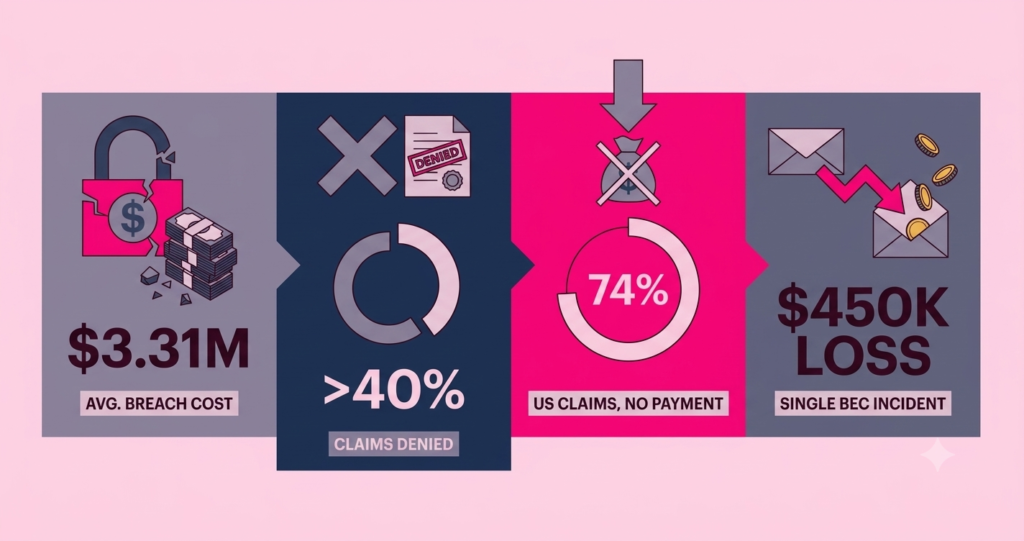
The average cost of a data breach for a small business ranges from $120,000 to over $1 million, with costs scaling sharply based on the size of the incident — enough to be business-ending for most 20-person shops. Even at the lower end, that’s a business-ending number for most 20-person shops. Spending $7 per user per month to prevent that outcome is straightforward math.
The Microsoft 365 Upgrade Math Has Changed
For businesses already on Microsoft 365, the upgrade question used to be simple: jump from Business Standard to Business Premium and get Intune, Entra ID P1, and Defender for Business bundled together. The price gap used to be $9.50/user/month. That made a custom standalone stack financially attractive.
As of July 1, 2026, Microsoft’s pricing has shifted:
- Business Basic: $6.00 → $7.00/user/month (approximately +17%)
- Business Standard: $12.50 → $14.00/user/month (+12%)
- Business Premium: $22.00 → $22.00/user/month (unchanged)
The gap between Standard and Premium has narrowed from $9.50 to $8.00 per user per month — a gap that now makes the Business Premium upgrade math worth revisiting for any team already buying standalone security tools. That means a standalone security stack now has to deliver equivalent protection for less than $8.00 to justify its setup time. The $7.00 stack described here clears that bar — and keeps each pillar independently upgradeable.
What You’re Actually Competing Against Pricewise
The real comparison isn’t “this stack vs. nothing.” It’s this stack vs. the alternatives a business owner might actually consider. Microsoft 365 Business Premium at $22/user/month bundles a lot, but forces a single-vendor dependency and pays for capabilities most small teams won’t use. Managed security providers solve the expertise gap but introduce ongoing service costs that dwarf any software license. The standalone stack beats both on price and keeps every component replaceable. For a deeper look at how bundled platforms stack up against best-of-breed tools on total cost of ownership, see our all-in-one vs. separate security cost guide.
Pillar 1: Lock Down Logins for $4/User
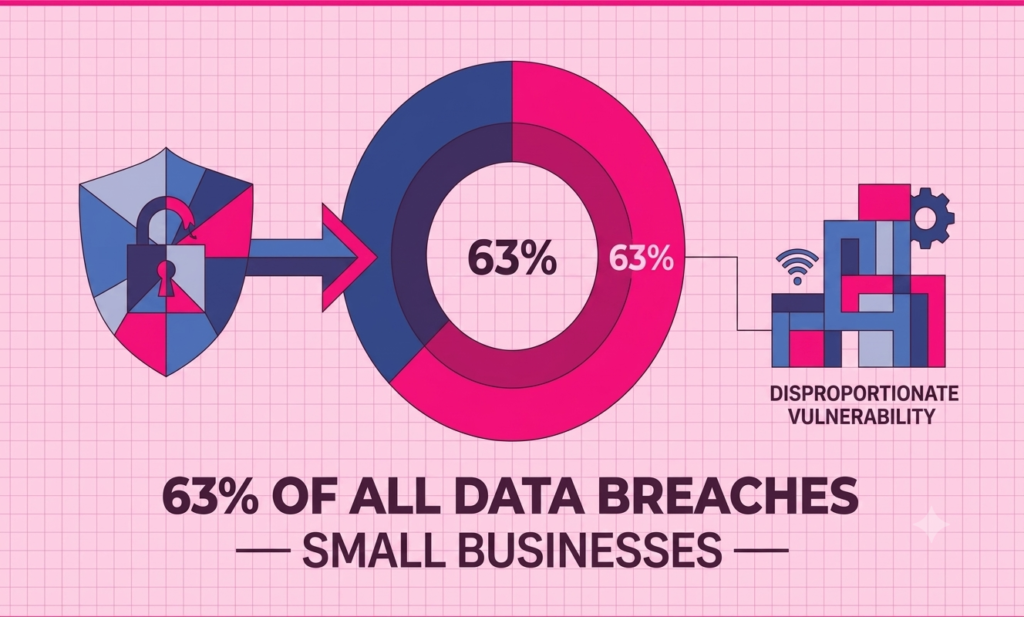
Stolen or reused passwords are behind the majority of small business account takeovers. The fix isn’t complicated — it’s a password manager with shared vault access and enforced multi-factor authentication (MFA). That combination eliminates the most common way attackers get in.
Bitwarden Teams is the right choice here at $4.00/user/month billed annually. It gives teams encrypted credential sharing, event logging, and directory integration. The administrator enables “Security Defaults” inside the primary identity provider (Microsoft 365 or Google Workspace) — which forces all users to register for MFA within 14 days. SMS and voice-call authentication should be disabled to prevent SIM-swap exploits. Authenticator apps like Microsoft Authenticator or Google Authenticator are the required fallback.
Bitwarden Teams: What You Get (and What You Don’t)
Bitwarden Teams covers what most small businesses actually need: unlimited shared collections, event logs, and directory sync via the open-source Bitwarden Directory Connector. That utility connects to Google Directory or Microsoft Entra ID via read-only LDAP queries and syncs users every four hours through a scheduled task.
What it doesn’t include is worth understanding upfront. The Teams tier has no SAML 2.0 or OpenID Connect SSO integration — that’s locked to the Enterprise tier at $6.00/user/month. There’s also no automated SCIM provisioning, which means new hires and departures require manual steps in the Bitwarden Admin Console. For a 15-50 person team, that’s manageable. For a faster-growing company, it becomes a friction point worth budgeting toward Enterprise.
The Two-Password Problem and How to Handle It
Because Bitwarden Teams doesn’t support SSO, users end up managing two separate passwords: their corporate identity login (Microsoft or Google) and their Bitwarden master password. This creates real risk — password fatigue leads to weak master passwords.
The practical fix is a written policy requiring that the Bitwarden master password must be a passphrase of at least four random words (e.g., “marble-cricket-lantern-fog”). Long passphrases are both memorable and extremely difficult to crack. This policy costs nothing to implement and directly closes the most likely gap in the Teams tier setup.
Employee offboarding also requires a specific two-step process: first, disable the user in the primary identity provider; second, immediately open the Bitwarden Admin Console and click Revoke on their membership. Skipping the second step leaves them with access to shared company credentials on any already-synced device — even after their email is deactivated.
Pillar 2: Stop Ransomware Without an IT Team
Endpoints — laptops, desktops, and company phones — are the most common entry point for ransomware. Attackers exploit unpatched software and weak endpoint defenses to get a foothold, then encrypt files and demand payment. Stopping this doesn’t require a security operations center. It requires two things: a capable endpoint protection tool and an automated patching system that actually runs.
Microsoft Defender for Business at $3/User
Microsoft Defender for Business is available as a standalone license for $3.00/user/month billed annually, designed for organizations up to 300 users. It provides next-generation antivirus, behavioral attack detection, automated investigation, and endpoint detection and response (EDR) across Windows, macOS, iOS, and Android.
Deploying it without Microsoft Intune — which would require upgrading to Business Premium — means using local onboarding scripts. For Windows, the administrator downloads the onboarding script directly from the Microsoft Defender portal and runs it as an administrator on each machine. For macOS, the installation package and onboarding XML are deployed directly to the device. It’s a one-time per-machine setup, not an ongoing burden.
Action1: Free Automated Patching for Up to 200 Devices
Action1 Autonomous Endpoint Management (AEM) is free for up to 200 endpoints and handles automated OS patching, third-party software updates (Chrome, Zoom, Adobe, and more), and software deployment — all without requiring a VPN. The Action1 agent installs as a lightweight MSI or EXE and runs silently in the background.
A key integration expanded in early 2026 connects Defender’s vulnerability discovery directly to Action1’s patching engine via API. Once the API handshake is set up between the Microsoft Defender Security Center and the Action1 console, both platforms cross-reference device lists automatically. Machines that exist in Action1 but are missing from Defender — or vice versa — get flagged immediately, pulling gap remediation into a single dashboard instead of two.
For patch deployment, the recommended configuration is Action1 Update Rings — a policy that automatically approves and installs critical and high-severity patches during off-hours, using peer-to-peer distribution between local devices to avoid saturating office internet bandwidth.
Enforcing BitLocker Encryption Without Intune: Using Action1 PowerShell Scripts and Local Group Policy on Windows Pro
Without Microsoft Intune, there’s no centralized policy engine to enforce disk encryption. The workaround uses Action1’s built-in scripting library to schedule a recurring PowerShell script that checks and enforces BitLocker status on every managed Windows machine. The script checks whether the C: drive is fully encrypted, and if not, triggers BitLocker using XtsAes256 encryption automatically — no manual intervention, no compliance gaps.
Combined with Defender for Business handling active threat detection, this gives the organization MDM-level configuration enforcement at zero incremental cost. Any machine that isn’t fully encrypted gets automatically remediated on the next scheduled run.
Pillar 3: Block Phishing Before It Hits the Inbox
Business email compromise (BEC) and targeted phishing are the most common starting points for small business attacks. Standard spam filters catch bulk junk mail — they struggle with personalized impersonation attempts that mimic a known vendor or the owner’s own email domain. A second layer of email analysis, applied after the native filter, closes that gap substantially.
Sublime Security’s Free Tier Covers Up to 100 Mailboxes
Sublime Security offers its core email security platform free for up to 100 mailboxes (confirm current limits at Sublime Security’s official pricing page). It connects to Google Workspace or Microsoft 365 via OAuth API — no DNS changes, no MX record modifications, no risk of mail delivery disruption. Once connected, Sublime analyzes every inbound, outbound, and internal message using its open-source Message Query Language (MQL).
MQL evaluates behavioral signals: sender history, brand impersonation patterns, link analysis using headless browsers, and attachment behavior. Unlike traditional black-box filters, every flagged message shows exactly which detection rules matched and why — making false positive reviews fast and auditable.
What the Free Tier Can and Can’t Do: Move-to-Spam vs. True Quarantine
The free Core tier’s main limitation is its remediation scope. Automated post-delivery actions are limited to moving messages to Trash or the user’s Spam/Junk folder. True Administrative Quarantine — where the message is held in a centralized queue invisible to the end user — and automated warning banners are paid features. The paid tier is custom-priced (contact Sublime Security’s sales team for a quote), so verify current pricing at Sublime Security’s official pricing page before budgeting for it — it would likely consume a significant portion of the $10 budget on email alone.
For a 15-50 person team, the free tier’s move-to-spam action is genuinely effective at keeping malicious messages out of active inboxes. The trade-off is that users can theoretically still find and open flagged messages from their Spam folder — which is exactly why the admin alert workflow below matters.
Building an Admin Alert Workflow via Webhooks at Zero Cost
The workaround for the quarantine limitation is a webhook-based admin notification system. When Sublime detects a high-confidence phishing or BEC message, it triggers an automation rule that simultaneously:
- Strips dangerous links and attachments from the message body
- Moves the cleaned message to the user’s Spam or Junk folder
- Fires a webhook that pushes the message metadata — sender, subject line, matched MQL rule — to a private Slack channel or Microsoft Teams space
The administrator sees every high-risk message in near real-time in the chat interface. If a false positive is flagged, restoring the message from the user’s Spam folder takes seconds. This out-of-band review queue operates completely silently for end users while giving the admin full visibility — all at zero additional cost. Pair this pillar with the phishing protection playbook this stack supports — the human-side habits that make the technical layer actually hold.
Pillar 4: Filter Dangerous Sites at the Network Level
DNS filtering is one of the highest-value, lowest-overhead security controls available. Every time a device tries to connect to a website, it first queries a DNS server to find the address. A filtering DNS service intercepts that query and blocks requests to known malware distribution sites, phishing domains, and command-and-control servers — before any connection is made and before any malicious payload has a chance to load.
Cloudflare Zero Trust: Free for Up to 50 Users
Cloudflare Zero Trust offers its full Secure Web Gateway (SWG) and Zero Trust Network Access (ZTNA) capabilities completely free for up to 50 users. Deployment requires installing the Cloudflare WARP client on each device, which routes DNS queries through Cloudflare’s filtering layer.
Without an MDM tool, the WARP client can be silently deployed via Action1. The administrator uploads the WARP installer to Action1’s private software repository and deploys it fleet-wide using silent installation parameters — registering each endpoint to the company’s specific Cloudflare Zero Trust tenant and bypassing the initial onboarding screens to prevent user confusion. For macOS, a configuration plist file is dropped into the Cloudflare application support directory before the installer runs, pre-configuring the tenant connection and auto-connect setting.
One real limitation of the free tier: DNS logs are only retained for 24 hours. This makes retroactive investigation difficult if a suspicious event is noticed days later. The straightforward workaround is to export logs daily via Cloudflare’s GraphQL API — or simply plan the transition to NextDNS at the 51-user mark, which solves the retention problem natively. For fully remote teams, it’s worth comparing this against the dedicated IP costs most VPN comparisons leave out — Cloudflare’s zero-trust model sidesteps that fee entirely, the same way Twingate does.
The 51-User Pivot to NextDNS Business
At 51 users, Cloudflare’s free tier reaches its seat limit. Upgrading to Cloudflare’s paid tier would add $357/month to the budget — pushing the stack well past $14/user/month. That’s the wrong direction.
The strategic move is to migrate DNS filtering to NextDNS Business, priced at a flat $19.90/month per block of 50 users. At 51 users, two blocks are purchased for $39.80/month total — roughly $0.78/user/month for DNS filtering. NextDNS also includes up to two years of log retention and over 1,000 granular content filtering categories. The overall stack cost at 51 users lands at $7.78/user/month — still comfortably under the $10 ceiling.
The Full Cost Breakdown: 15 to 51 Users
Here’s the complete monthly cost picture across four common team sizes:
| Stack Component | 15 Users | 30 Users | 50 Users | 51 Users (Pivot) |
|---|---|---|---|---|
| Bitwarden Teams ($4/user) | $60.00 | $120.00 | $200.00 | $204.00 |
| Defender for Business ($3/user) | $45.00 | $90.00 | $150.00 | $153.00 |
| Action1 AEM | $0.00 (Free) | $0.00 (Free) | $0.00 (Free) | $0.00 (Free) |
| Sublime Security | $0.00 (Free) | $0.00 (Free) | $0.00 (Free) | $0.00 (Free) |
| Network / DNS Filtering | $0.00 (Cloudflare Free) | $0.00 (Cloudflare Free) | $0.00 (Cloudflare Free) | $39.80 (NextDNS Pivot) |
| Total Monthly Cost | $105.00 | $210.00 | $350.00 | $396.80 |
| Cost Per User/Month | $7.00 | $7.00 | $7.00 | $7.78 |
The stack is intentionally modular. Each component can be upgraded independently as the business grows. When the budget expands, Bitwarden Teams can migrate to Bitwarden Enterprise to unlock SAML SSO and automated SCIM provisioning. Standalone Defender licenses can roll into a full Microsoft 365 Business Premium subscription without changing the endpoint agent. Action1 remains free up to 200 devices, then moves to a paid tier starting at $4.00/endpoint/month (billed annually, for the 201-1,000 endpoint Growth tier) — verify current pricing at Action1’s pricing page. Sublime Security preserves all custom MQL detection rules when transitioning to a paid tier past 100 mailboxes — zero rework required.
Do the Basics Right and You’re Safer Than Most Businesses
The stack described here — four pillars, five tools, $7/user/month — covers every major entry point attackers use against small businesses: stolen credentials, unpatched software, phishing emails, and malicious websites. None of it requires an IT team to deploy or maintain. Each tool was selected specifically because it works without a dedicated administrator watching it constantly.
Most small businesses have none of these protections in place. Some have one. Very few have all four working together. Getting all four running — even imperfectly — places any business in a significantly stronger position than the vast majority of similarly sized companies. The most common attacks succeed not because they’re sophisticated, but because no one closed the obvious doors.
The two paid tools — Bitwarden Teams and Microsoft Defender for Business — handle the work that free tools genuinely can’t. The three free tools — Action1, Sublime Security, and Cloudflare Zero Trust — carry more weight than their price tag suggests. Together, they form a layered defense: locked logins feeding into protected endpoints, with suspicious emails and dangerous sites filtered before they reach a user who might click the wrong thing.
There’s no perfect security setup, and no stack eliminates all risk. But doing the basics well — consistently, automatically, at a price that doesn’t require board approval — puts a small business in a fundamentally different category than one running on hope and default settings. For small business owners ready to take the next step, our free cybersecurity health check is a practical starting point for business owners protecting their business without an IT team behind them.
A note on pricing: Prices correct at time of writing. Always check current pricing before purchasing.