


Key Takeaways
- Small businesses without an IT department can build effective Zero-Trust protection using tools already included in Microsoft 365 Business Premium or Google Workspace Business Plus, rather than buying new software.
- 43% of cyberattacks target small and medium-sized businesses, making basic identity protections like multi-factor authentication a priority rather than an afterthought.
- Zero-Trust rests on three simple ideas: verify every request explicitly, give people only the access they need, and assume a breach could already be happening.
- A frequent and costly mistake is buying third-party security tools before switching on the protections already sitting inside an existing productivity subscription.
- A complete enterprise-grade protection stack for 15 users can cost around $582 a month, showing that strong security does not require an unlimited budget.
Zero-trust for small business sounds like it belongs in a corporate IT department, but that assumption leaves a lot of owners exposed. Cybersecurity can feel like something built for big companies with big budgets – yet the core ideas can be put into practice by anyone running a business without technical staff. This guide breaks the concept down into plain steps, starting with the risks that make it worth doing in the first place.
43% of Cyberattacks Target SMBs
Small businesses are not flying under the radar the way many owners assume. A widely cited 2019 Accenture study found that 43% of cyberattacks target small businesses — and newer data suggests the picture hasn’t improved: Verizon’s 2025 Data Breach Investigations Report found SMBs experienced roughly four times more confirmed breaches than large organizations in 2024. That figure alone is reason enough for Zero-Trust thinking to earn its place in a small business’s routine, rather than sitting on a someday list.
This is exactly why zero-trust for small business matters. The reason attackers favour smaller targets is simple: fewer defences, less monitoring, and a higher chance that a single stolen password opens every door. A café owner managing bookings online, a freelance bookkeeper handling client invoices, or a small retailer processing card payments all hold data worth stealing, even without a dedicated security team watching over it. TechEd Shield has spent time translating these risks into practical, jargon-free security steps for small businesses, which is useful context before understanding what Zero-Trust really means in practice.
Understanding the scale of the problem matters, but panic is not the goal here. The rest of this piece focuses on what zero-trust for small business can realistically look like, starting today, using tools many small businesses already pay for.
“Never Trust, Always Verify” Explained
Zero-trust for small business is a philosophy rather than a single product. The mandate behind it is simple to say and surprisingly powerful in practice: never trust, always verify. Instead of assuming that anyone inside the company network or logged into a familiar account is automatically safe, every request for access gets checked, every time, regardless of where it comes from.
This matters because traditional security worked like a castle with a moat: strong walls on the outside, but almost no protection once someone got past the gate. Modern work does not fit that model. Staff log in from home Wi-Fi, coffee shops, and personal phones, so there is no single “inside” left to protect. Zero-Trust replaces that outdated wall with three foundational pillars.
Explicit Verification
Explicit verification means checking more than just a password before granting access. A useful way to understand this is a bouncer at a high-security venue who does more than glance at an ID card at the door. That bouncer checks whether the person is wearing the right pass for the room they are entering, confirms their identity again at sensitive areas, and pays attention to anything unusual about how they arrived.
In practical terms, this looks like requiring a second proof of identity beyond a password, such as an approval on a phone app, and evaluating signals like device health and location before letting someone into email, files, or financial systems. A login attempt from an unfamiliar country in the middle of the night deserves a second look, even if the password typed in was correct — see our step-by-step guide to setting up SSO and MFA for small business for exactly how to configure that kind of check without an IT team.
Least Privilege Access
Least privilege access means giving every employee only the access they need to do their specific job, and nothing more. Handing out broad access “just in case” is the digital equivalent of giving every member of staff a master key that opens every office, drawer, and filing cabinet in the building.
A marketing assistant rarely needs access to payroll records, and a part-time sales associate should not have administrative control over customer databases. Restricting access this tightly, when set up properly, limits how much damage one compromised account can cause without slowing work down.
Assumed Breach
Assumed breach means designing defences on the assumption that an attacker might already be inside, rather than hoping the outer wall holds forever. This is similar to how a submarine is built with sealed compartments: if one section floods, the damage stays contained instead of sinking the whole vessel.
For a small business, this translates into isolating individual devices from one another, encrypting sensitive files, and having automated tools ready to lock down a laptop the moment something looks wrong. Assuming a breach is preparation, limiting how far one bad click can spread.
Start With Identity, Not Hardware
Many owners assume zero-trust for small business starts with buying new equipment, firewalls, or fancy network gear. It does not. Identity is the far more sensible starting point, because stolen login credentials remain one of the most common ways attackers get into a business in the first place. Securing who can log in, and how, delivers far more protection per pound spent than any piece of hardware.
This is one of the most practical aspects of zero-trust for small business: the very first project can be completed with settings already available in an existing subscription rather than a new purchase. Turning on multi-factor authentication for every account, retiring outdated sign-in methods that skip that extra check, and separating everyday accounts from administrator accounts are all identity-first moves. None of these require specialist knowledge to switch on, and each one closes a door that attackers commonly walk through.
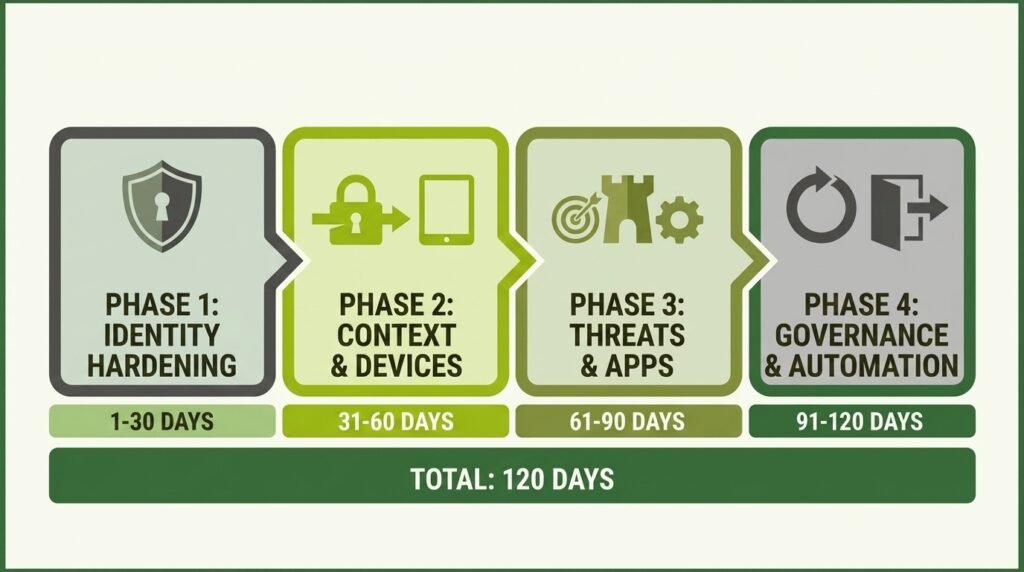
Only once identity is locked down does it make sense to think about devices, applications, and the rest of the Zero-Trust picture. Building in that order avoids wasted spending on tools that solve problems further down the priority list. A realistic rollout for a small business without dedicated IT staff spans about 120 days across four phases: identity hardening in the first 30 days, device and context controls over the next 30, threat and application protections in days 61 to 90, and governance and automation to close things out by day 120 — for distributed teams, our remote team security checklist for small businesses breaks phases two and three down further.
Tools Already Inside Your Subscription
One of the most reassuring facts about zero-trust for small business is that most of the groundwork is likely already paid for. Productivity subscriptions many businesses use every day for email and file storage include serious security features that simply need switching on.
Microsoft 365 Business Premium
Microsoft 365 Business Premium includes Microsoft Entra ID Plan 1, Microsoft Intune, and Microsoft Defender for Business, bundling identity management, device oversight, and email threat protection under one roof – a setup that suits a business without a dedicated IT team particularly well.
The appeal here is consolidation. Rather than juggling separate logins and dashboards for identity, device security, and antivirus protection, everything sits inside one subscription with sensible default templates that do not require technical fluency to configure. A business scaling from five employees to fifty can grow into this system without needing to rebuild its security stack from scratch.
Google Workspace Business Plus
Google Workspace Business Plus includes advanced endpoint management, Google Vault, and enhanced security features, offering a similar path for businesses that live inside Gmail, Google Drive, and Google Meet. Context-Aware Access controls let a business restrict sign-ins based on factors like device security status or location, while built-in device management and phishing filters run quietly in the background without needing local software installed on every machine.
Data protection tools inside Workspace, including retention and search features through Google Vault, give a business the ability to set rules about how sensitive files get shared, blocking risky habits like posting “anyone with the link” access to confidential documents. For browser-first teams, this suite covers the same Zero-Trust ground as Microsoft’s offering, just through a different interface.
| Capability | Microsoft 365 Business Premium | Google Workspace Business Plus |
|---|---|---|
| Identity management | Microsoft Entra ID Plan 1 | Context-Aware Access (restricts sign-in by device security status or location) |
| Device oversight | Microsoft Intune | Advanced endpoint management |
| Threat protection | Microsoft Defender for Business (email threat protection) | Built-in phishing filters |
| Data protection | Bundled under Entra ID / Intune device management | Google Vault (retention, search, blocks risky “anyone with the link” sharing) |
| Best fit for | Businesses standardized on Microsoft/Outlook/Teams | Businesses living in Gmail, Drive, and Meet |
Closing the Gaps Native Tools Miss
Closing gaps is the next phase of zero-trust for small business. Native productivity suite features cover a great deal of ground, but a small number of gaps are worth closing with targeted, lightweight additions. Endpoint monitoring is one of the clearest examples: standard antivirus tools often miss modern threats that do not rely on recognisable malware files. Huntress Managed EDR includes 24/7 SOC monitoring with human threat analysis, incident response, and remediation guidance, pairing lightweight software on each device with a human team that sends back plain-English steps rather than technical alerts nobody can action.
Hardware-based authentication is another sensible addition, particularly for the accounts that matter most. FIDO2-compliant keys, such as the YubiKey 5 Series, provide a physical, practically unphishable way for owners, finance managers, or anyone with administrative access to prove their identity. Because these keys are tied cryptographically to the real website being accessed, a fake login page simply will not accept them, removing one of the most common tricks attackers use against busy executives.
For a business running around 15 staff, a complete stack combining a core productivity suite, password management, managed endpoint detection, a handful of hardware keys, and cloud backup totals roughly $582.35 a month. That breaks down to $330.00 for Microsoft 365 Business Premium at $22.00 per user, $60.00 for how password managers stop reused-password breaches (e.g., Bitwarden Teams) at $4.00 per user — note this rises to roughly $120.00/month with the more full-featured 1Password Business at $7.99/user, $134.85 for managed endpoint detection (Huntress Managed EDR) at $8.99 per endpoint, $12.50 amortized monthly for hardware keys (based on 5 keys at ~$50 each, amortized over 20 months), and $45.00 for cloud backup at $3.00 per user. That figure is a useful anchor for owners trying to budget realistically, showing that strong protection does not require an unlimited security spend — though owners should confirm current vendor pricing, since EDR and password management costs vary significantly by provider and licensing tier.
Mistakes That Undermine Zero-Trust
Even well-intentioned zero-trust for small business efforts can stall or backfire when a few common mistakes creep in. Recognising these early saves time, money, and staff frustration.
- Buying third-party tools before configuring what is already included: purchasing standalone password managers, VPNs, or antivirus software before switching on the security features already built into an existing Microsoft 365 or Google Workspace subscription leads to duplicate spending and a fragmented, harder-to-manage setup.
- Rolling everything out at once: switching on strict access rules for the entire company simultaneously risks locking staff, and even the owner, out of essential systems overnight. Testing new rules on a small group first catches problems before they affect everyone.
- Creating so much friction that staff find workarounds: overly strict rules without clear explanation push employees toward personal email or unauthorised cloud storage just to get their work done, which quietly undermines the whole point of the exercise.
- Ignoring non-human accounts: service accounts, printer integrations, and old application logins rarely get the same scrutiny as staff logins, yet they are frequently the accounts attackers target first because nobody is watching them.
Avoiding these pitfalls depends more on pacing, communication, and consistency than on technical skill – all things a business owner without an IT background can manage directly.
Basics Done Well Beat Complexity
Getting zero-trust for small business right isn’t about chasing every advanced feature available – that temptation is understandable, but it’s rarely where the real protection comes from. A business that enforces multi-factor authentication everywhere, restricts access sensibly, keeps devices encrypted, and trains staff to report suspicious emails without fear of blame will be safer than most competitors, even without a single specialist tool beyond what is already installed.
Zero-trust for small business, at its heart, rewards consistency over complexity. Getting the fundamentals right and keeping them right, week after week, does more for a small business than any single expensive add-on ever could. For a practical next step, consider working through a Zero-Trust security checklist that turns these principles into a short list of actions to complete this month.
Before you spend a penny on new security tools, it’s worth finding out how far your business already is toward Zero-Trust — using nothing but the settings sitting inside the subscription you’re already paying for. Work through the eight checks below honestly or take our Free Cybersecurity Health Check for a fuller picture across your whole business. Your score will tell you exactly where to start.
Wherever your score landed on this zero-trust for small business checklist, the path forward is the same: work through the unchecked items one at a time, starting with multi-factor authentication if it isn't already on everywhere. None of these steps require a technical background or a new purchase — just an hour inside your admin settings and the willingness to switch on protections that are already included.