

Key Takeaways
- 43% of all cyberattacks target small businesses, and 19% of those hit face bankruptcy – making basic protection a survival issue, not just a tech issue.
- The vast majority of common attacks can be stopped with a handful of fundamental controls: strong passwords, multi-factor authentication, DNS filtering, auto-patching, backups, email security, and access limits.
- None of these 7 steps require an IT team, technical expertise, or a large budget – most use tools already built into the platforms you are paying for.
- Automated security tools can respond to threats in seconds, meaning the right setup protects your business even when you are not watching.
- TechEd Shield offers a free Wi-Fi Security Checker to help spot network vulnerabilities today – a useful first step before working through the 7 steps below.
Running a business without IT support doesn’t mean running it unprotected. This small business cybersecurity checklist breaks it down into 7 practical, low-cost steps — built for people managing everything themselves.
43% of Cyberattacks Hit Small Businesses – and Many Struggle to Recover, With 19% Facing Bankruptcy After a Breach
Small businesses are attacked nearly four times more often than large organizations. 43% of all cyberattacks target small businesses, according to research first published in 2019 – and more recent data suggests the concentration on small targets has only grown. Verizon’s 2025 DBIR found SMBs experienced roughly four times more confirmed breaches than large organizations. Cybercriminals deliberately target smaller businesses because they typically have fewer defenses in place. Automated attack scripts scan the internet constantly, looking for easy entry points, and an unprotected small business is exactly what they are looking for.
The consequences hit hard and fast. IBM’s Cost of a Data Breach Report puts the average at $3.31 million for businesses with fewer than 500 employees – though for businesses under 50 employees specifically, Verizon’s DBIR suggests a more realistic range of $120,000 to $1.24 million per incident, still enough to threaten survival.
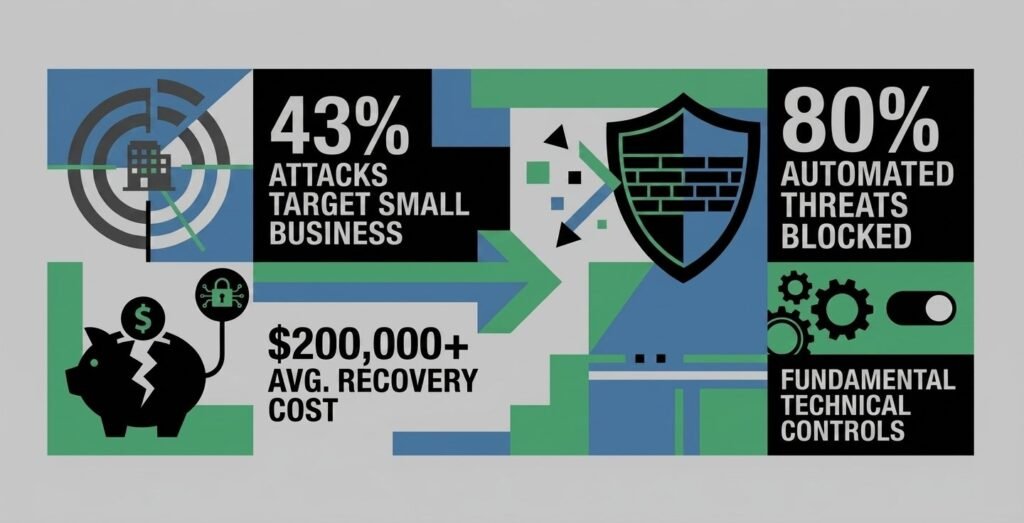
Beyond the financial damage, 19% of small businesses that suffer a breach face bankruptcy. With no dedicated IT staff to contain the fallout, the business owner is left to deal with the damage alone – often while still trying to serve customers.
The good news: most of these attacks are not sophisticated. They exploit simple, fixable gaps. That is what makes the 7 steps in this guide so powerful – they are designed to close those gaps without requiring a technical background or a large investment.
Why Basic Steps Beat Complex Systems
Basic Cyber Hygiene Stops the Majority of Attacks
Microsoft strongly advocates for basic controls like multi-factor authentication, keeping software updated, and limiting admin access, which are highly effective in preventing many cyberattacks. While specific figures vary, reports consistently show that a high percentage of attacks – particularly those involving social engineering and credential theft – can be stopped by these measures. The CISA Cyber Essentials guide, built specifically for small businesses, recommends the same foundational steps.
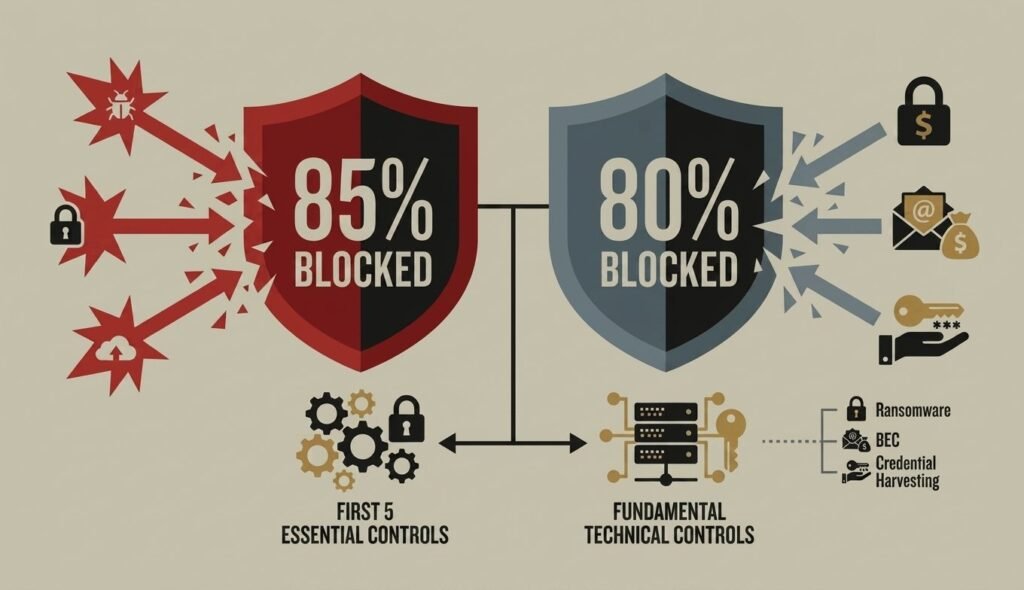
The reason these basics work so well is that most attackers are not trying to break through a sophisticated defense. They are looking for the path of least resistance. Fix the obvious gaps, and the vast majority of automated threats simply move on to an easier target.
The Shared Responsibility Blind Spot
One of the most dangerous assumptions small business owners make is that their cloud provider – whether Microsoft 365, Google Workspace, or another platform – is handling security for them. These platforms keep the infrastructure running, but they do not protect data from phishing attacks, account takeovers, or ransomware. That responsibility falls on the user. The 7 steps below are how to actually fulfill it.
Before you read another word — how many of these 7 steps does your business already have covered? Check off what applies to you. It takes 30 seconds, and it will tell you exactly where to focus first.
Your 7-Step Security Checklist
0 / 7Check off what your business already has in place.
Wherever you landed on the checklist, the fix is the same: work through the unchecked boxes in order. None of them require a developer, a security certification, or a budget increase — just an afternoon and the settings you're already paying for.
Step 1: Replace Passwords With a Vault
Why Employees Reuse Passwords (And What It Costs)
Human memory was not built for managing dozens of unique, complex passwords. So people reuse them, tweak them slightly, or pick ones that are easy to remember - all habits that automated tools can exploit. Attackers use a technique called credential stuffing, where bots test leaked username and password combinations across hundreds of login portals. One breach on an unrelated website can hand an attacker the keys to a business email account, cloud storage, or accounting software.
Free and Low-Cost Tools That Do the Work
A password manager solves this completely. Tools like Bitwarden (free for individuals, minimal cost for teams) or 1Password (Business plan, roughly $8-$9 per user per month) automatically generate, store, and fill in unique passwords for every account — see our full comparison of the 7 best password managers for small businesses for how these and five other options stack up on price and features. Setup takes one to two hours for a small team. One important rule: do not rely on browser-based password storage. Browser credential stores cannot be centrally managed, do not enforce strong master passwords, and are a primary target for malware designed to extract stored credentials in plain text.
Step 2: Make MFA Mandatory, Not Optional
MFA Blocks the Vast Majority of Account Takeovers
Multi-factor authentication (MFA) requires a second form of verification beyond a password - typically a code from an authenticator app. According to Microsoft, MFA blocks more than 99% of account compromise attempts. It is one of the single most impactful things a small business can do.
The key word is mandatory. Telling employees to set it up is not enough - the setting needs to be enforced at the admin level so no accounts are left exposed. In Microsoft 365, this is done by enabling Security Defaults in the Entra admin center. In Google Workspace, it is configured under Security > Authentication > 2-Step Verification. Both take under an hour and cost nothing beyond existing subscriptions. Use an authenticator app like Microsoft Authenticator or Google Authenticator rather than SMS codes, which can be intercepted via SIM-swapping. Even businesses with MFA "on" often have gaps — see 5 MFA setup mistakes that leave small businesses exposed to check yours.
Step 3: Block Dangerous Sites Before They Load
Every time someone on the network clicks a link or visits a website, their device sends a DNS query - essentially asking the internet where that domain lives. Standard setups process those queries without any filtering, meaning one click on a malicious link can connect a device directly to a phishing page or malware server.
DNS-level filtering intercepts those queries in real time. If the destination domain is known to host malware or phishing content, the request is blocked before the page ever loads. Cloudflare Zero Trust Gateway offers a free tier well-suited for small teams - check Cloudflare's website for the current user limit. If your business runs its own WiFi network too, see 7 business WiFi security tools that stop the breaches most SMBs miss for the wireless side of this same protection. It can be deployed by updating the office router DNS settings or installing a lightweight app on each device - setup takes one to two hours and protects every device on the network, including remote workers.
Step 4: Patch Systems Automatically
The Reboot Delay That Leaves You Exposed
When a vendor releases a security patch, it also signals to attackers exactly what flaw exists in unpatched systems - and automated scanners start probing for those systems immediately. CISA recommends applying critical patches in a timely manner to address vulnerabilities as soon as they are identified. The easiest way to stay on schedule: turn on automatic updates and stop delaying restarts.
On Windows, go to Settings > Windows Update > Advanced Options and toggle on Receive updates for other Microsoft products. On macOS, go to System Settings > General > Software Update and enable all automatic installation options. The single biggest mistake here is letting employees postpone restarts indefinitely. Many patches require a reboot to actually apply - downloading the update without restarting leaves the device just as vulnerable as before.
Steps 5-7: Backup, Email, and Access Control
Built-In Cloud Backup Is Often Too Limited to Rely On Alone
Most small business owners assume Microsoft 365 or Google Workspace automatically backs up their data - not in the way that matters. Native platforms permanently delete items after 30 to 93 days, and if ransomware encrypts a file, that corrupted version syncs across all connected devices instantly. A dedicated cloud-to-cloud backup service stores copies of data in a completely separate location. Tools like Dropsuite, AFI.ai, or IDrive run automated daily backups of emails, shared drives, contacts, and calendars - with point-in-time restore capabilities that can roll back to a clean state before an attack. These typically cost around $3.00 per user per month for teams, though individual user pricing may be higher.
Nine in Ten Attacks Arrive by Email
Email is the starting point for the large majority of successful cyberattacks, most commonly through phishing (CISA). Both Microsoft 365 and Google Workspace have built-in tools to combat this - they just need to be switched on.
- External email banners: Add a visible warning to every email from outside the organization - a simple nudge that prompts extra caution before clicking links.
- Anti-phishing settings: In Google Workspace, enable enhanced safety rules under Gmail > Safety. In Microsoft 365, configure anti-phishing settings within the Microsoft Defender portal through security policies or rules - verify the exact path on Microsoft's support pages for your subscription.
- Email authentication records (SPF, DKIM, DMARC): Publishing these DNS records tells receiving mail servers worldwide to block or quarantine emails impersonating the business domain. Setting DMARC to p=quarantine or p=reject significantly reduces domain spoofing by instructing receiving mail servers to quarantine or reject unauthenticated emails impersonating the business domain.
Limit Who Can Access What - and Cut It Instantly
When an employee has full administrative rights and clicks a malicious file, that file inherits those permissions - giving it the ability to make system changes, install software, and spread across the network. The fix: set up employee accounts as standard users, not administrators, and store a single local admin password in the company password vault for when elevated access is genuinely needed.
The same principle applies to offboarding. When someone leaves, their account needs to be disabled immediately - not eventually. Connecting apps to Microsoft Entra ID or Google Workspace single sign-on means disabling one central account cuts access to every connected tool at once, eliminating the risk of former employees or attackers quietly accessing company systems after departure.
The Basics Done Right Protect Your Business - Start Today
None of these 7 steps require technical expertise, a dedicated IT team, or significant spending. Most use tools already built into platforms small businesses are already paying for - they just need to be switched on and configured properly. A password vault, enforced MFA, DNS filtering, automatic patching, independent backups, hardened email settings, and smart access controls together stop the vast majority of attacks before they cause any damage.
The businesses that get breached are usually not missing something exotic. They are missing the basics. Getting those right is the most impactful thing any small business owner can do to protect what they have built.