



Key Takeaways
- Your home Wi-Fi network is now part of your business’s security perimeter – and it needs to be treated that way.
- Upgrading to WPA3 encryption, segmenting your devices into separate networks, and locking down your router settings are among the most impactful changes you can make today.
- Most home network breaches happen through weak router credentials, unpatched firmware, or insecure IoT devices – all of which are preventable with a simple checklist.
- The 14-control checklist covered later walks you through every step, in plain language, with no technical background required.
A home network security checklist matters more now than ever – when remote work became mainstream, home networks quietly became business infrastructure. Most people just never updated their security to match. That gap – between how seriously we treat our home Wi-Fi and how seriously we should – is exactly where attackers look first.
Your Home Network Is Now a Business Target
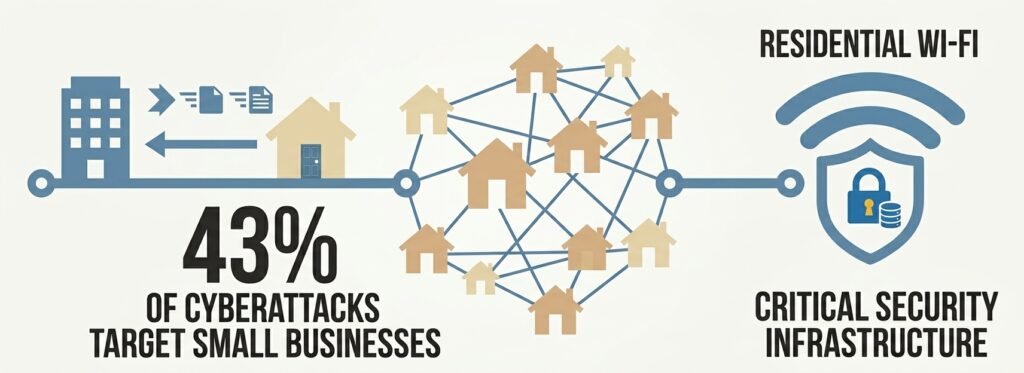
According to a widely cited 2019 Accenture study, roughly 43% of cyberattacks target small businesses – and more recent data suggests the concentration on smaller targets has only grown since. That statistic used to feel abstract. Now that millions of people run their businesses from home, it’s personal. Your router, your smart TV, your kids’ gaming console – they all share the same network as your work laptop and your client files.
This is exactly why a home network security checklist matters. NIST’s telework security guidance (SP 800-46) is built on a related principle: organizations should assume that external networks – including home networks – are inherently untrusted and susceptible to eavesdropping and interception. Not because home networks are badly designed, but because they were never built for business use. They’re open, unmonitored, and full of devices that haven’t seen a security update in years.
A home network security checklist exists precisely because of risks like this: a compromised smart camera on your home network could give an attacker a foothold to intercept traffic from your work laptop – a technique called a Man-in-the-Middle attack. This is a well-documented potential risk, where a vulnerable IoT device becomes the entry point for attempts to reach a remote worker’s corporate device. TechEd Shield’s free Wi-Fi Security Checker is a practical starting point to see where your home network currently stands before working through the fixes below.
Upgrade Your Wi-Fi Encryption First
Encryption is the foundation of any home network security checklist. If your wireless traffic isn’t properly encrypted, everything else you do is undermined.
WPA2’s Known Weaknesses and Why They Still Matter
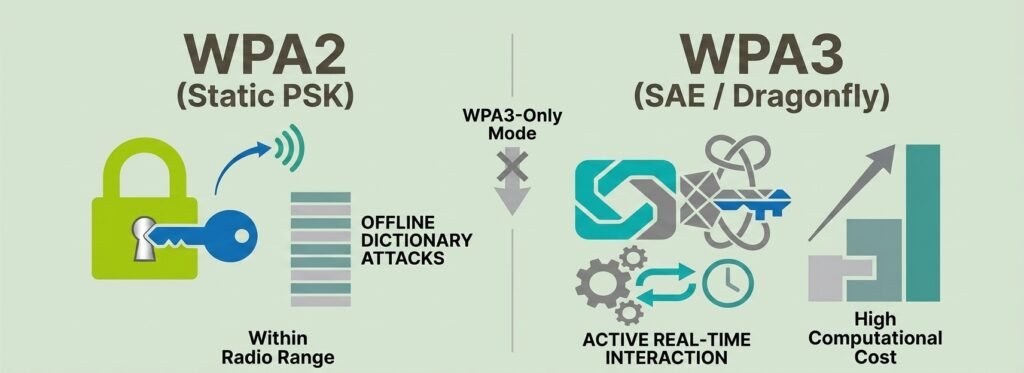
WPA2 – still the default on most home routers – relies on a static password and a four-way handshake during connection. Anyone within Wi-Fi range can silently capture that handshake and take it offline to crack using dictionary attacks. They don’t need to stay near your home. They grab the data and leave. With modern computing power, weak-to-moderate passwords fall in hours.
What WPA3 Actually Fixes
WPA3 replaces that vulnerable handshake with a protocol called Simultaneous Authentication of Equals (SAE). Under SAE, an attacker cannot capture anything useful offline. Every password guess requires a live, real-time interaction with your router – meaning the router can slow them down or block them entirely. WPA3 also enforces Forward Secrecy, so even if your password is ever exposed in the future, past captured traffic remains unreadable.
WPA3 also requires Protected Management Frames (PMF), which blocks a common attack where hackers spoof your router and force your devices to disconnect – often to capture login credentials during reconnection. Log into your router settings and look for WPA3-Personal or SAE under your wireless security options. If some older devices in your home can’t connect, use WPA3 Transition Mode as a bridge – but keep your work devices on a WPA3-only network whenever possible.
Keep Your Work Devices on Their Own Network
Segmentation is one of the most underused items on any home network security checklist – and it costs nothing to set up.
Work, IoT, and Guest: Three Separate Lanes
Think of your home network like lanes on a highway. Right now, most home networks run everything in one lane: your laptop, your smart fridge, your guest’s phone, and your security camera all share the same traffic. If one gets compromised, they all become reachable.
The solution is network segmentation. Many modern routers support VLAN (Virtual Local Area Network) settings that let you create separate, isolated lanes – though it’s worth checking your router’s specifications first, as not all consumer-grade models include robust VLAN support. If yours doesn’t, consider a router upgrade. The three lanes to aim for are:
- Work lane: Your laptop, work phone, and any business peripherals only.
- IoT lane: Smart TVs, cameras, speakers, appliances – anything that connects but doesn’t need to talk to your work devices.
- Guest lane: Temporary access for visitors, completely isolated from everything else.
The principles behind the CIS Controls – particularly Control 12 (Network Infrastructure Management) and Control 13 (Network Monitoring and Defense) in the current v8.1 framework – support exactly this kind of segmentation, and those principles apply directly to home offices.
The VLAN IDs used in the checklist below (10, 20, 30) are illustrative examples. You can use any available VLAN IDs your router supports.
Block Devices from Crossing Into Your Work Zone
Creating the lanes is step one. Step two is making sure nothing can jump between them. In your router’s firewall settings, set a rule that blocks all traffic from your IoT and Guest networks from reaching your work network. Also enable AP Isolation (sometimes called Client Isolation) on your IoT and Guest Wi-Fi networks – this prevents devices on those networks from communicating with each other directly, so a compromised smart device can’t probe others on the same segment.
Lock Down Your Router Right Now
Router settings are a core part of any home network security checklist. The router is the front door to everything on your network, and most people never change the lock from the factory default.
Change Default Credentials Immediately
Default router usernames and passwords – things like admin / admin or admin / password – are publicly listed in manufacturer databases online. Automated scanning tools search for home routers with those default credentials around the clock. Changing them takes under two minutes. Set a strong, unique passphrase of at least 20 characters and store it in a password manager. See our breakdown of the best password managers for small businesses in 2026 if you don’t already have one in place. This single step closes one of the most commonly exploited entry points.
Two Settings to Disable Today: Remote Access and UPnP
While you’re in the router admin panel, disable two settings that are often enabled by default and serve as hidden vulnerabilities:
- Remote WAN Management: This allows your router to be administered from the internet. Unless you have a specific reason for it, turn it off. It exposes your router’s login page to the entire internet.
- Universal Plug and Play (UPnP): UPnP lets devices on your network automatically open ports through your firewall – without asking for permission. If malware infects any device on your network, it can use UPnP to open a backdoor straight through your router. Disable it. Any legitimate port forwarding can be configured manually.
Keep Your Router From Being the Weak Link
Enable Automatic Firmware Updates
Firmware updates belong on every home network security checklist. Home routers are a known target for criminal botnets and sophisticated threat groups – not because they’re impressive targets, but because they’re almost never updated. Router firmware patches fix memory corruption flaws, command injection bugs, and remote code execution vulnerabilities that attackers actively exploit. Find the firmware update settings in your router admin panel and enable automatic updates. If your router doesn’t support automatic updates, set a monthly calendar reminder to check manually. If your router has reached its manufacturer end-of-life date and is no longer receiving patches, replace it – continued use introduces risk that no setting change can fix.
Schedule Regular Reboots for Router Health
Security guidance from the NSA recommends power-cycling your home router at least once per week as a general best practice. Some advanced malware strains live only in your router’s temporary memory – they don’t write to storage, which means they survive everything except a reboot. A weekly restart flushes that volatile memory and breaks any unauthorized connections that may have established quietly. Most modern routers allow you to schedule automatic reboots in the admin settings.
Stop Your DNS From Leaking Your Business Activity
DNS protection is an often-missed item on a home network security checklist. Every time you visit a website, your device sends a DNS query – essentially asking what the address is for that site. By default, those queries travel unencrypted over the open internet, meaning your internet provider and anyone monitoring your local network can see every domain you look up. For remote workers handling client communications, financial tools, or sensitive business platforms, that’s a meaningful privacy exposure.
The fix is encrypted DNS. DNS-over-HTTPS (DoH) wraps those queries inside standard encrypted web traffic. DNS-over-TLS (DoT) does the same with a dedicated encrypted channel. Both are supported by privacy-focused DNS resolvers like Quad9 (9.9.9.9), Cloudflare Security (1.1.1.2), and NextDNS. These services also cross-reference domain lookups against threat intelligence feeds – if you accidentally click a phishing link, the DNS resolver can block the connection before anything downloads.
Use a VPN – But Set It Up Correctly
Full-Tunnel vs. Split-Tunnel: Which Is Safer?
VPN configuration is the final major item on any home network security checklist. A VPN encrypts your internet traffic, but the configuration matters as much as having one. There are two main approaches:
- Full-tunnel VPN routes 100% of your traffic through the encrypted business VPN. This is the more secure option – your traffic never touches your home network unencrypted, and it passes through your company’s security filters.
- Split-tunnel VPN routes only work-specific traffic through the VPN, letting general internet traffic go directly through your home connection. It uses less bandwidth, but it leaves your non-work traffic exposed to anyone monitoring your local network – including a compromised IoT device.
If split-tunneling is required, it should only be used alongside proper network segmentation and a host-based firewall on the work device itself. For the broader question of whether your business needs a firewall, a VPN, or both, see our firewall or VPN for small business breakdown. This is one piece of a larger picture — see our remote team security checklist for small businesses for the identity, device, and ZTNA controls that pair with a secured home network.
Prevent DNS Leaks Inside the VPN
A DNS leak happens when your device is connected to a VPN but still sends DNS queries through your unencrypted home network instead of through the VPN tunnel. This means your internet provider – or anyone on your local network – can still see which domains your work computer is looking up, even though you think you’re protected. Fix this by ensuring your VPN client routes all DNS requests through the VPN adapter. You should also set your VPN adapter’s MTU to somewhere in the 1380-1420 byte range to reduce packet fragmentation issues – though the optimal value can vary, so testing within that range or checking your VPN provider’s recommendations is worthwhile.
The Full Checklist: 14 Controls That Cover Your Home Network
Here is every control, in order, to fully harden your home Wi-Fi for remote work:
- Switch to WPA3-Personal (SAE) in your router’s wireless settings.
- Enable Protected Management Frames (PMF / 802.11w) – set to Mandatory on WPA3 networks.
- Create separate VLANs for Work (e.g., VLAN 10), IoT (e.g., VLAN 20), and Guests (e.g., VLAN 30) – use any IDs your router supports.
- Set firewall rules blocking all IoT and Guest traffic from reaching your work network.
- Enable AP / Client Isolation on IoT and Guest wireless networks.
- Change your router’s default admin username and password to a strong, unique passphrase (20+ characters).
- Disable Remote WAN Management in your router’s administration settings.
- Disable UPnP in your router’s advanced network settings.
- Customize your SSID – remove manufacturer identifiers and any personal information. Keep SSID broadcasting on, as hiding it offers minimal security benefit and can cause devices to broadcast your network name in public spaces while searching for it.
- Enable automatic firmware updates or set a monthly manual update schedule.
- Schedule a weekly router reboot via the admin panel or a physical power cycle.
- Set your DNS to an encrypted resolver (Quad9, Cloudflare 1.1.1.2, or NextDNS) and enable DoH or DoT.
- Enable Always-On VPN with full-tunnel routing on your work device; test MTU settings in the 1380-1420 byte range per your VPN provider’s guidance.
- Verify DNS leak protection in your VPN client settings to ensure queries route through the encrypted tunnel.
Before you dig into the fixes, get a quick read on where your home network actually stands. Check off the controls you already have in place, and this tool will score your setup and tell you which tier you’re in — Vulnerable, Improving, Strong, or Hardened. It only takes a minute, and it’ll show you exactly where to focus first.
🔒 Home Network Security Score
Check off every control you already have in place.
Wherever your score landed, you now have a clear starting point. If you’re in the Vulnerable or Improving range, don’t try to tackle all 14 controls at once — go back to the three highly recommended changes above (WPA3, network segmentation, and new router credentials) and work outward from there. Revisit this checker after each session to watch your score climb.
Secure Your Home Network Today – Before One Mistake Costs Your Business
None of the steps in this home network security checklist require technical expertise. Each one addresses a specific, documented way that home networks get compromised – and every one is within reach of a non-technical business owner who has 30 to 60 minutes and access to their router admin panel. The risks are real, the fixes are practical, and the checklist above covers all of it.
Start with the three highest-impact items on this home network security checklist: upgrade to WPA3, separate your work devices onto their own network, and change your router’s default credentials. Those three steps alone move you well ahead of the average home network security posture. Then work through the rest of the list at your own pace.
TechEd Shield helps small business owners and freelancers build a home network security checklist with clear, jargon-free guidance. If you manage an office network rather than a home one, see our small business WiFi security checklist: 8 fixes that matter for the equivalent controls in that setting.